 SpaceSharp
 Using SpaceSharp
Keyboard shortcuts
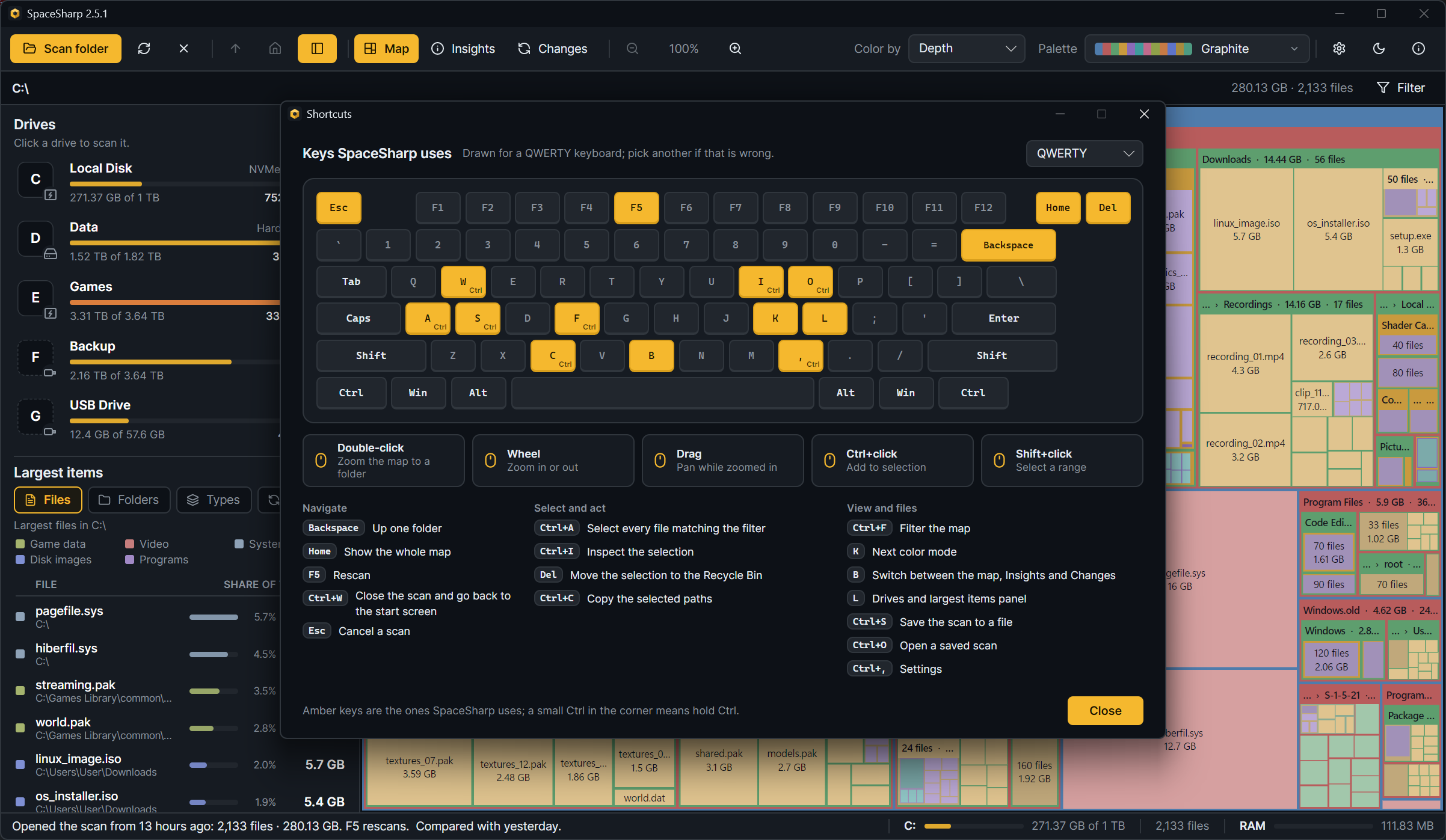
About › Keyboard shortcuts (or F1 › Shortcuts) draws this list on your own keyboard layout with the keys lit; the layout follows Windows and can be changed there (QWERTY, Nordic, QWERTZ, AZERTY, Spanish, Italian, Dvorak, Colemak). On a Mac, Ctrl reads ⌘.
Navigate
| Key | Does |
|---|---|
| Double-click | Zoom the map to a folder |
| Backspace | Up one folder |
| Home | Show the whole map |
| Mouse wheel, + and − | Zoom in or out |
| Drag | Pan while zoomed in |
| F5 | Rescan |
| Ctrl+W | Close the scan and go back to the start screen |
| Esc | Cancel a scan; clear the filter; close the drawer |
Select and act
| Key | Does |
|---|---|
| Click, Ctrl+click, Shift+click | Select; add to the selection; select a range |
| Ctrl+A | Select every file matching the filter |
| Ctrl+I | Inspect the selection |
| Del | Move the selection to the Recycle Bin |
| Ctrl+C | Copy the selected paths |
| Alt+Enter | Windows Properties for the selected item |
| Enter | Open the selected item |
View
| Key | Does |
|---|---|
| Ctrl+F | Filter the map |
| K | Next color mode |
| B | Switch between the map, Insights and Changes |
| L | Drives and largest items panel |
| Ctrl+S | Save the scan to a file |
| Ctrl+O | Open a saved scan |
| T | Achievements |
| Ctrl+, | Settings |
| F1 | About, with the shortcuts window and the crash logs |
In the Changes view, Enter and the Right arrow open a folder in place, Left closes it or goes to its parent, and Enter on a file goes to it on the map.